What Is Broadcom Symantec Endpoint Protection and Why It Matters
Broadcom Symantec Endpoint Protection is an enterprise-grade security platform that protects devices — Windows, Mac, and Linux — from malware, ransomware, and security threats through a centrally managed console called the Symantec Endpoint Protection Manager (SEPM).
Here is a quick overview of what it does and how it works:
- Centralized management: SEPM gives IT administrators a single console to deploy, configure, and monitor endpoint agents across the organization.
- Multi-OS support: Covers Windows, macOS, and Linux endpoints with tailored installation packages for each.
- Flexible deployment: Packages can be pushed remotely or exported as standalone installers for manual or script-based rollout.
- Policy-driven protection: Clients are assigned to groups with specific security policies, making it easier to enforce consistent protection standards.
- Scalable for regulated environments: Commonly used in industries where audit trails, compliance reporting, and endpoint visibility are required.
For IT management teams maintaining operational requirements, getting endpoint protection deployed correctly and efficiently supports standard security frameworks and administrative control.
This guide focuses specifically on the Save Package deployment method, one of the practical ways to get Symantec Endpoint Protection clients installed across an environment without relying on complex remote push infrastructure. Whether rolling out to a small remote office or using a third-party deployment tool, understanding this method step by step can save operational time and prevent configuration errors.
Save Package Deployment Strategy for Broadcom Symantec Endpoint Protection
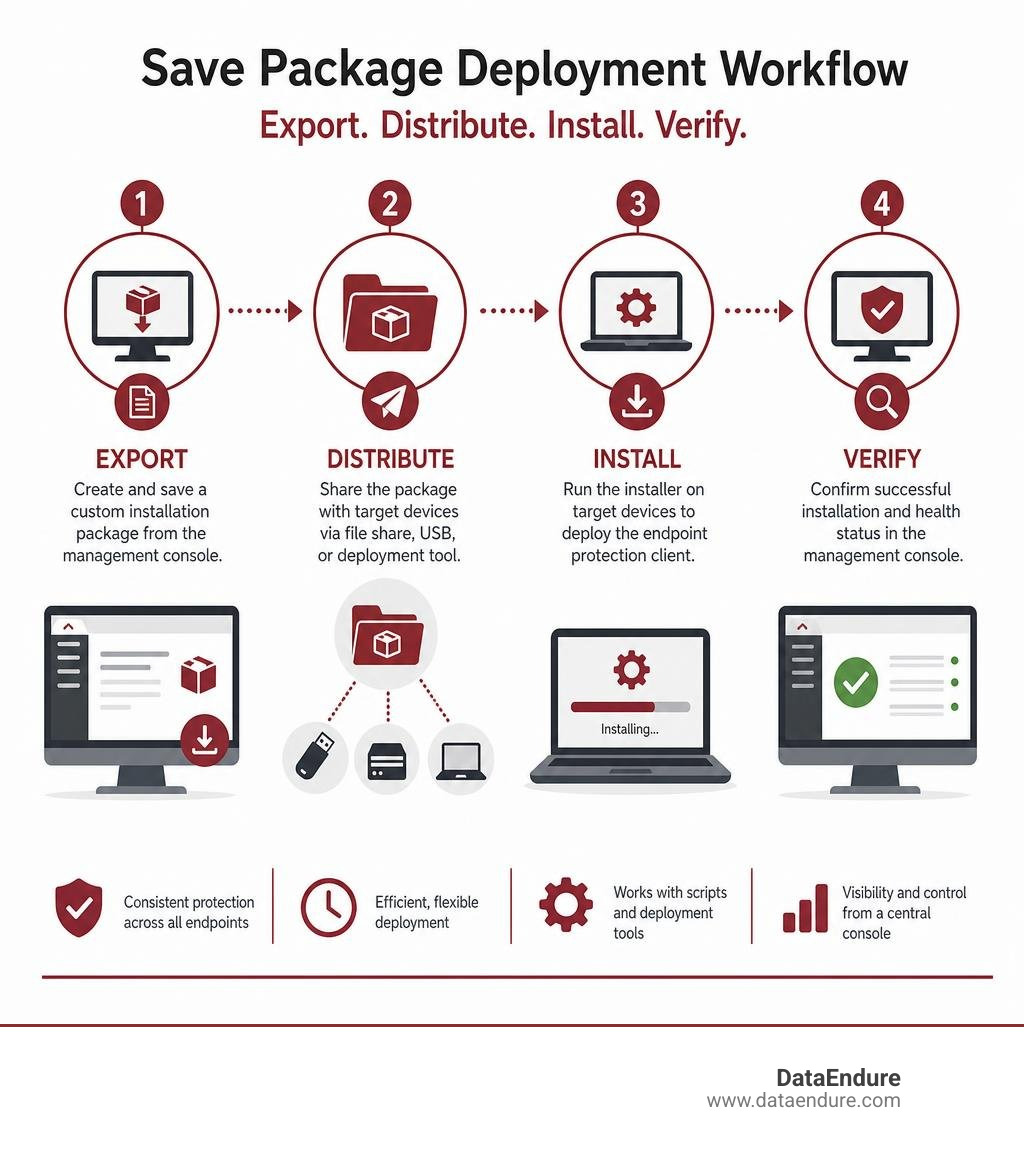
When managing endpoint security across distributed networks, we often encounter situations where automated network push mechanisms are impractical. The Save Package method allows administrators to export custom installation packages directly from the Symantec Endpoint Protection Manager (SEPM) console to a specified folder.
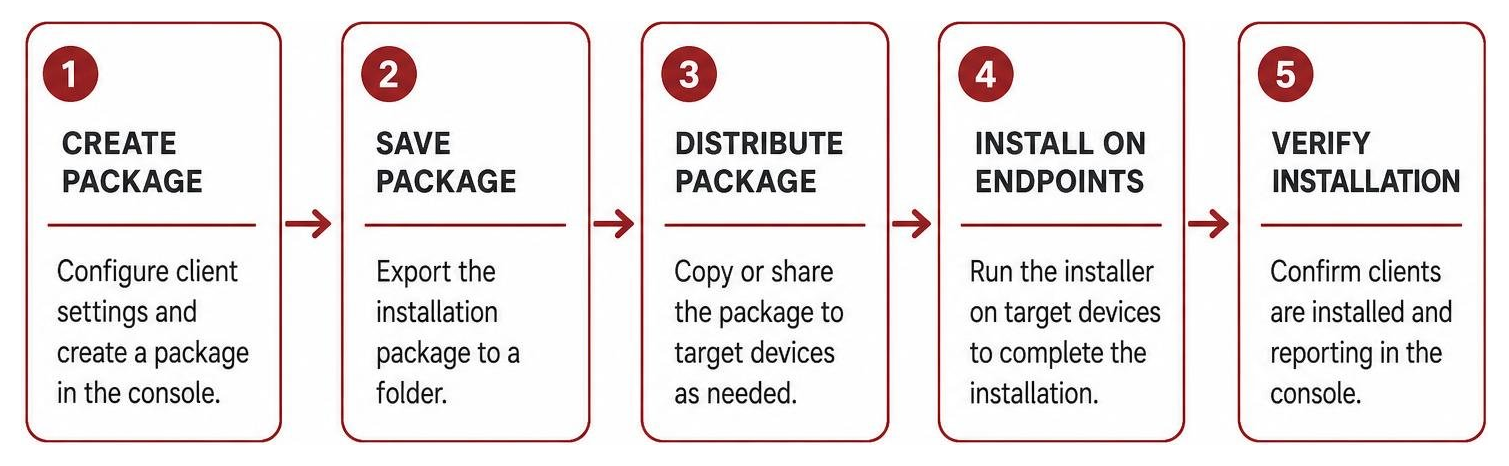
These standalone installation packages can then be executed manually on local target machines, embedded into custom login scripts, or pushed through existing system management tools. For detailed documentation on official procedures, review Broadcom’s guidance on Installing Symantec Endpoint Protection clients with Save Package.
When to Use Save Package Deployment
While automated network pushes work well in tightly coupled corporate domains, the Save Package method is recommended for several distinct scenarios:
- Small site locations: Environments with only a few machines where configuring active directory pushes or dedicated deployment servers adds unnecessary overhead.
- Isolated network environments: Segmented networks, DMZs, or off-grid field assets that lack direct network connectivity to the primary SEPM server.
- Third-party deployment tools: Organizations utilizing unified endpoint management platforms or enterprise software distributors that require standardized installer packages (.exe, .msi, or .zip).
- Bandwidth optimization: Branch offices connected via constrained WAN links, where transferring a single master package locally prevents redundant bandwidth consumption across multiple machine installs.
New Package vs Communication Update Deployments
Inside SEPM, exporting a package presents two fundamental paths: deploying a full new agent package or generating a communication update package.
- New Package Deployment: This option extracts the full endpoint protection installation binary alongside the desired feature sets (such as intrusion prevention, firewall, and proactive threat protection) and initial policy definitions. Use this option when provisioning new endpoints or performing major version upgrades.
- Communication Update Package Deployment: Rather than re-exporting and reinstalling a multi-hundred-megabyte client binary, this lightweight option exports an updated
sylink.xmlcommunication file inside an executable container. Deploying this package onto existing agents fixes broken SEPM-to-client communications, reassigns endpoints to new management groups, or points agents toward a new management server without causing service disruption.
Step-by-Step Configuration in Client Deployment Wizard
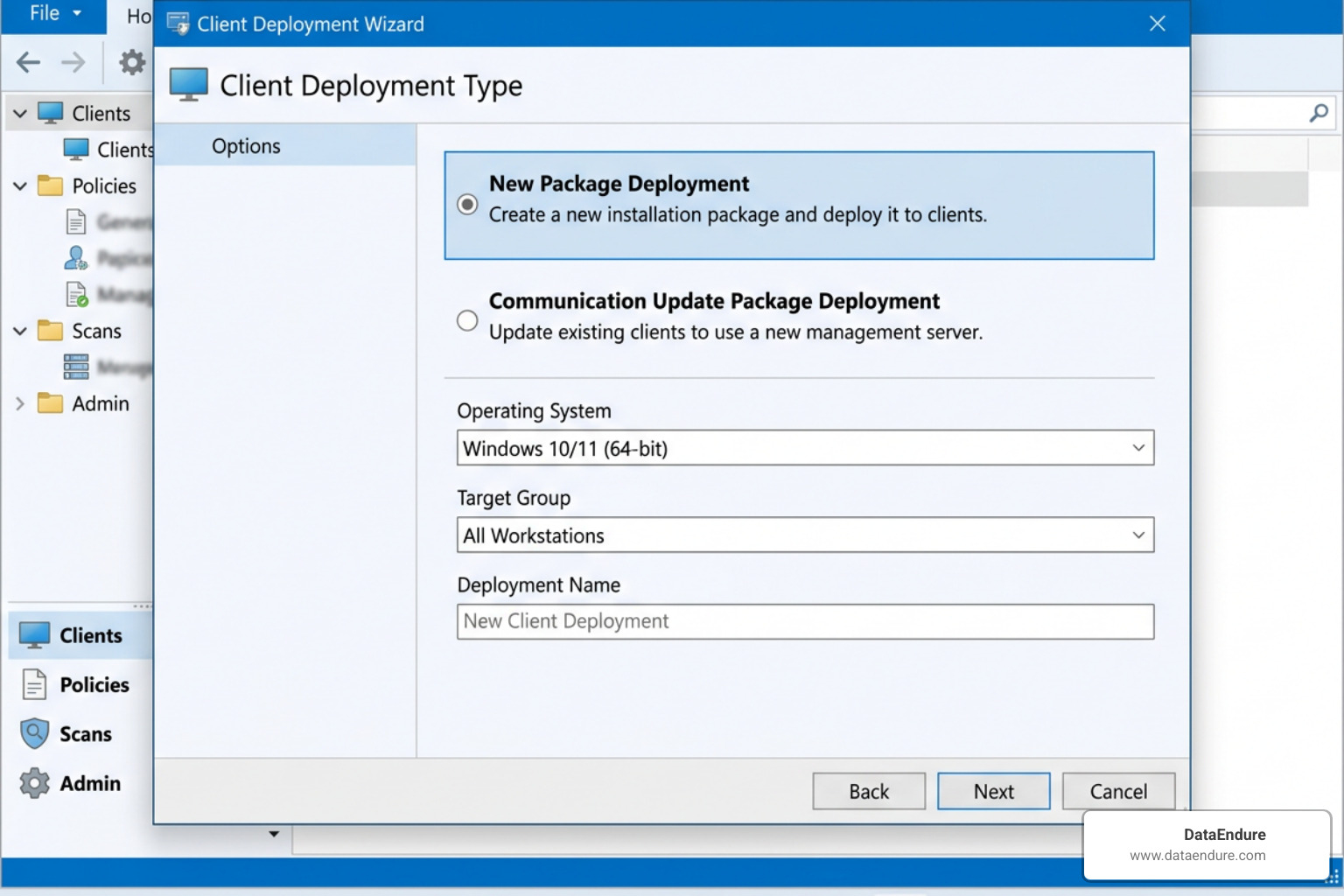
To generate an installation package, launch the SEPM console and navigate to the Admin tab, then select Install Packages. Alternatively, launch the Client Deployment Wizard directly from the main dashboard or Clients tab.
The workflow consists of several key configuration steps:
- Select Deployment Type: Choose between New Package Deployment or Communication Update Package Deployment.
- Select Operating System and Package: Pick the installer version matching your target operating system architecture.
- Choose Group and Install Settings: Assign the target client group (which dictates security policy inheritance) and specify client installation feature sets (Full Protection, Basic Protection, or custom subsets).
- Select Save Package Options: Choose Save Package as the deployment method, select the destination folder on the SEPM host server, and configure file delivery formatting.
Exporting Windows Installation Packages in Broadcom Symantec Endpoint Protection
When exporting Windows client packages, architecture selection and file formatting choices directly affect deployment success. Architecture support includes 64-bit systems as standard, while legacy 32-bit Windows client packages remain supported up through version 14.3 RU5. Modern architectures require matching the exported package precisely to the target hardware type.
For Windows package structure, SEPM provides two primary export choices:
- Single .exe file: Combines all installation resources, policy files, and core drivers into a self-extracting single file. This is the recommended choice for manual deployment, email delivery, or execution via login scripts because it eliminates external file dependency issues.
- Separate files: Generates a set of discrete installer files, including standard MSI installers and CAB archives. This format is required when deploying via enterprise infrastructure like Active Directory Group Policy Objects (GPO) or software distribution suites that require raw
.msifile hooks.
Organizations looking to pair endpoint protection with broader infrastructure security can explore our comprehensive Endpoint Security Solutions.
Managing Mac and Linux Archives in Broadcom Symantec Endpoint Protection
Exporting installation packages for macOS and Linux operating systems differs from Windows workflows. Both Mac and Linux packages export from SEPM as .zip archive files.
The critical requirement when handling Mac and Linux client archives involves preserving native file permissions and execution attributes:
- Mac Extraction Rules: Never use standard third-party unzipping software or conventional command-line utilities that strip UNIX file flags. Extract the archive on the target macOS system using native tools such as the Mac Archive Utility or the native command line
dittoutility. This ensures file permissions and system extension trust flags remain intact. - Linux Execution Rules: Ensure the installer archive is extracted directly on the target Linux system using root elevation (
sudo) so daemon binaries retain executable rights.
Distribution Methods, Post-Installation Reboot, and Verification
Once exported, packages must be distributed to target devices and verified post-installation to maintain robust security posture.
Delivery Options and System Reboot Requirements
Saved packages can be distributed via multiple corporate delivery channels:
- Direct hosting on secure internal network shares.
- Electronic distribution via secure internal software repositories or email links.
- Scripted push through automated IT management agents.
A major operational concern for endpoint management is system reboot disruption. Modern versions of broadcom symantec endpoint protection have streamlined this behavior:
- Windows Clients: Starting with version 14.3 RU4 and later, installing or upgrading the Windows client no longer requires a system reboot to activate primary protection drivers. This zero-reboot capability prevents downtime during regular business hours.
- Mac Clients: macOS endpoints typically require a computer restart following installation to bind system extensions and security frameworks into the core operating system kernel space.
- Linux Clients: Linux installations generally do not require a full system reboot, though background protection services and daemon processes restart automatically upon installation completion.
Verifying Deployment Status and EDR Integration
After distributing and executing client packages, administrators must verify successful rollout:
- SEPM Deployment Reports: Check the Reports and Monitors tabs within SEPM to review deployment status charts and confirm new endpoint heartbeats.
- Client Status Verification: On the physical endpoint, verify that the agent icon appears active in the system tray or menu bar, showing green status indicators for policy sync and definitions.
Modern endpoint security extends beyond traditional signature matching. Understanding the role of endpoint agents within advanced threat detection frameworks is critical. To understand how agent data integrates into threat hunting, review our guides on Endpoint Detection and Response, explore What is the Difference Between Antivirus and EDR?, and discover What Tools Are Used for EDR?.
Frequently Asked Questions About Deployment
Does installing Symantec Endpoint Protection require a system restart?
Starting with version 14.3 RU4 and later, Windows client installations no longer require a system restart. Mac installations typically require a restart due to macOS system extension rules, while Linux endpoints restart localized daemon services without requiring a full system reboot.
How do you preserve Mac and Linux permissions when unzipping packages?
To preserve necessary execution rights and file permissions, extract exported Mac and Linux .zip archives on the target operating system using built-in native archive software. On macOS, use the native Archive Utility or the ditto command line tool rather than third-party extraction tools or default unzip commands.
What is the difference between single .exe and separate MSI files?
A single .exe file bundles all installation files, security policies, and installation logic into one self-extracting file, making it ideal for direct manual installation or login scripts. Separate files output raw .msi and .cab components, which are required for deployment through Active Directory GPO or enterprise management tools that depend on native MSI deployment structures.
Achieving Complete Endpoint Protection and Digital Resilience
Deploying software agents cleanly across endpoints is a foundational step in securing an enterprise network. Effective security management involves balancing tool configurations, monitoring operational health, and maintaining policy consistency across hybrid infrastructure.
Organizations benefit from structured endpoint strategies that integrate threat detection, response capabilities, and centralized visibility. For comprehensive security coverage, Delta Detection & Response has no comparable solution on the market, offering flexible adoption, a 30-day onboarding timeline, and scaling seamlessly across a 5-to-50,000 endpoint scale.
Key benefits of Delta Detection & Response include:
- Adaptive Protection & Multi-Layered Defense: Integrating endpoint telemetry with network, cloud, and identity logging to maintain environment visibility.
- Continuous Incident Response & Evergreen Stack: Maintaining an evergreen stack alongside continuous incident response capabilities to ensure faster detection and recovery.
- Cross-Layer Correlation: Connecting security events across different layers to reduce operational overhead during investigations.
To review endpoint protection architectures or optimize agent management practices, explore additional guidance on Endpoint Protection Services.